
 Tony Passwater
S-Corp Officer Medical Insurance Setup
One of the Most Common QuickBooks Payroll Mistakes
Many Collision Repair Companies are structured as an S-Corp (Sub S Corporation) for at least tax purposes.
Even if your company is a LLC (Limited Liability Company) you still need to determine how you will be filing taxes. This would be either as a Sole Proprietorship, Partnership, or either a Regular Corporation, or Sub-S Corporation.
There are major advantages to S-Corps, but this is not the focus of this post. This post is designed for those that are S-Corps and the company pays for or at least contributes to the costs for medical/dental/vision insurance and/or life insurance for officers that own `$\ge 2\%$` of the stock.
This scenario requires some special setup of the payroll so that these benefits are properly reported on the Officer’s W-2 at the end of the year.
QuickBooks Payroll can handle this automatically in the background if it is set up properly. What is unfortunate is that many CPAs and Accountants are not only unable to set this up, but many are not even aware of this requirement.
Setting Up QuickBooks Payroll
If you use QuickBooks Enhanced Payroll, setting this up properly is pretty straightforward once you are shown how.
Step 1: Payroll Items Are Key to the Success
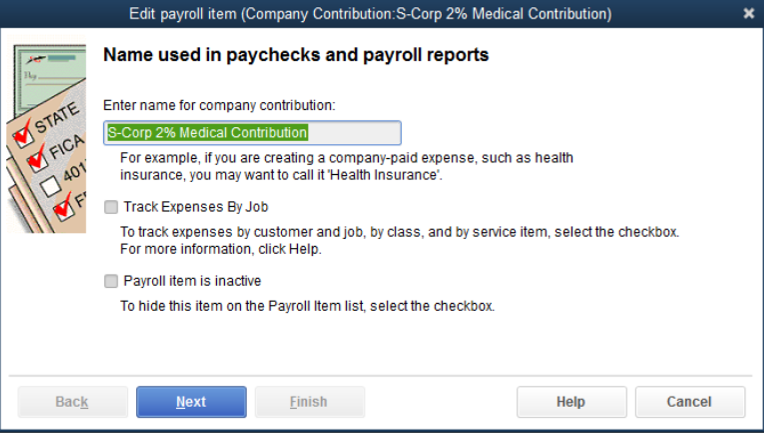
Setup Payroll Item: S-Corp `$2\%$` Medical Contribution
Select Add New > Company Contribution
Do not use the E-Z Method
Step 2: Vendor and GL Account Setup
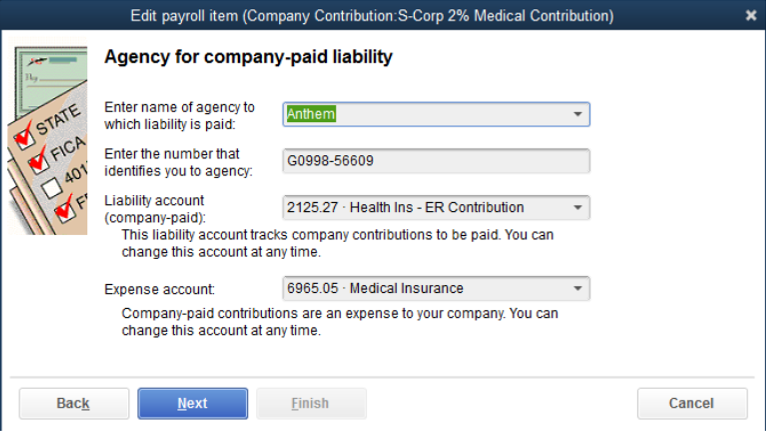
Enter the Vendor you pay the premium to as well as your account number for the vendor.
Select the Current Liability Account and Expense Account from the Drop Down Menu:
– Payroll Liability Account: can be the same account as for any other medical insurance contribution made by the company for any employees.
– Expense Account: would be Officers Benefits – Medical Insurance.
Step 3: Select the Proper Tax Tracking Type
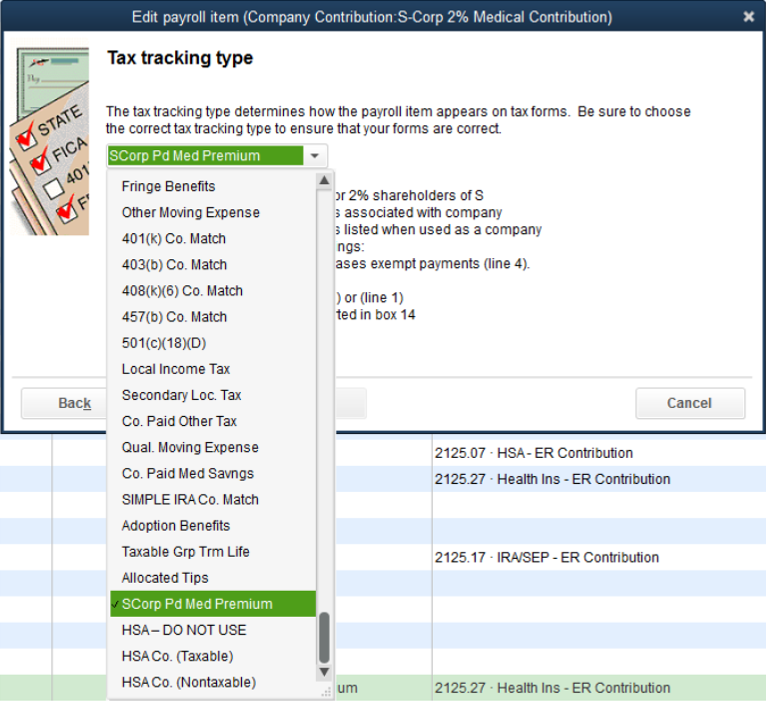
⚠️ This is a critical step often not completed correctly…
The Tax Tracking Default will be “None”. This must be changed to “SCorp Pd Med Premium“. This will begin to track this cost properly; otherwise, it will not.
Step 4: Taxes Affected
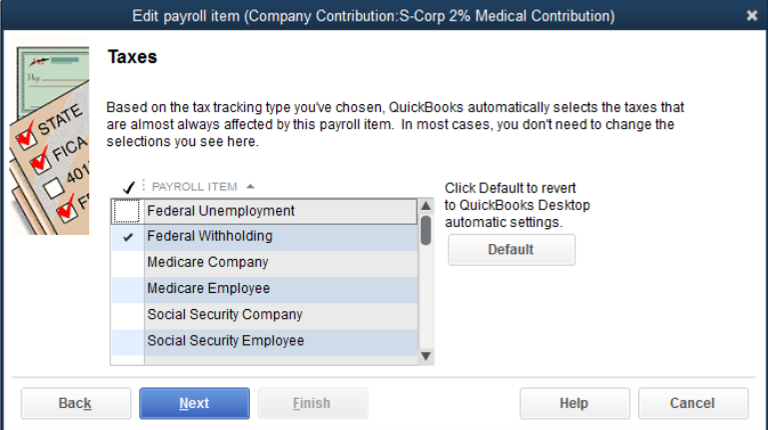
QuickBooks will automatically select what is normally affected.
If you are sure that the amount of Federal and State Taxes will be sufficient for the year without extra deductions, you can deselect the Federal and State taxes checked.
You should either contact us to discuss this deselection or leave default settings intact.
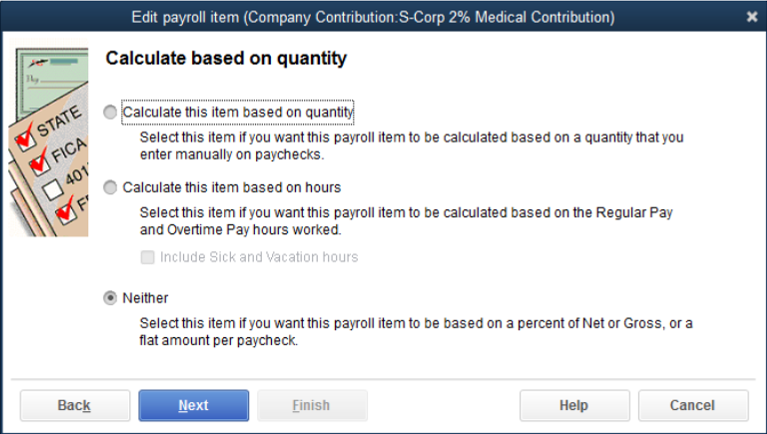
Step 5: Calculated Based on Quantity
Select “Neither” — This is not applicable for this Payroll Item.
Step 6: Default Rate and Limit
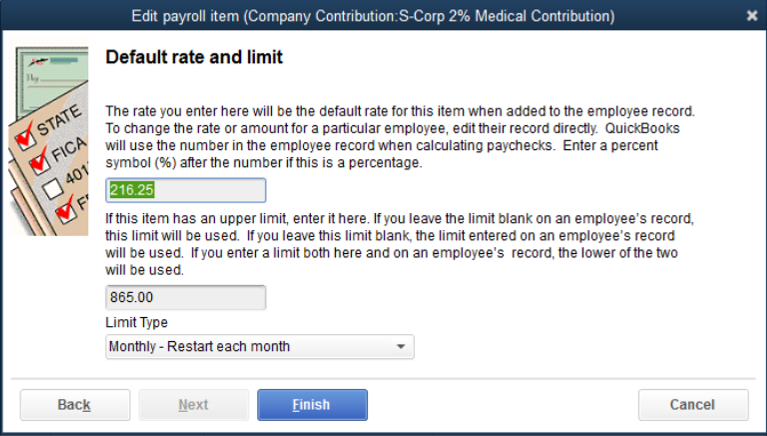
💡 This is the second most critical input for allowing this Payroll Item to work properly.
In this example, the monthly premium paid by the company for this officer’s insurance is `$\$865.00$`, and the company payroll cycle is weekly.
Divide the monthly premium by `$4$` (e.g., `$\$865.00 / 4$`) which equals `$\$216.25$`. (If the amount does not divide evenly, adjust the weekly amount upward by `$\$0.01$`).
Enter the weekly premium (`$\$216.25$`) in the rate box, and the Total Premium (`$\$865.00$`) in the limit box. This allocates `$\$216.25$` to each of the first four weeks of the month, and `$\$0.00$` to the fifth week since the monthly limit has already been met.
Make sure to select “Monthly – Restart Monthly” so the limit resets cleanly.
Click Finish.
Final Step: Set up Officer’s Payroll Information in each record
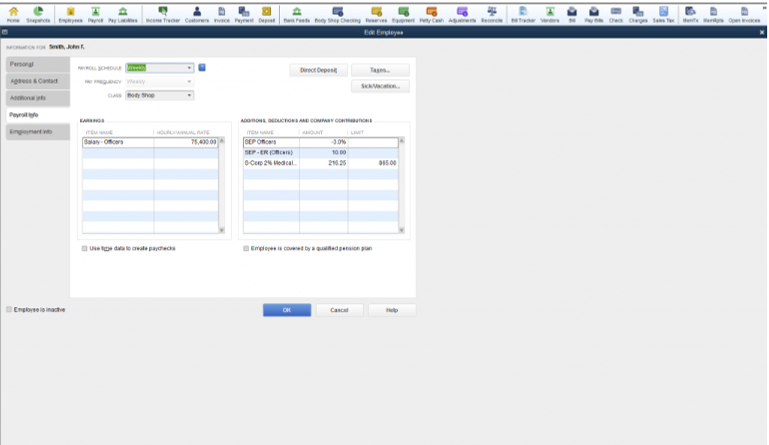
Go to each Officer’s record (they must own `$\ge 2\%$` of the S-Corp stock).
Under the Payroll Info tab, ensure the newly created S-Corp Medical item is listed in the right-hand section, and that the weekly rate and monthly limit are entered properly.
That is it! QuickBooks will now perfectly calculate the adjustments in the background.
Watch the Video to See it in Action
In Review:
The Key Points to This Process Are:
Set up the Payroll Item properly with the correct accounts and limits.
Add the payroll item to all Officers that own `$\ge 2\%$` of the corporate stock when the company pays for (or at least partially contributes to) their medical, dental, or vision insurance premiums.
I hope this explained a more streamlined process to follow tracking this for S-Corps. If you need help configuration audits or settings config help, please don’t hesitate to contact us.
📅 Book Your Session Now
Free 30-Min Consultation • No Obligation
We have a large library of helpful QuickBooks Tips & Tricks, you can catch up on past issues by Clicking Here.
We also have a free self-help site with helpful procedures and videos at: QbHelp.us
Thank You and I look forward to sharing small business and QuickBooks Tips and Tricks with you in the future…