 Tony Passwater
QuickBooks Memorized Transactions
Saving Time, Improving Ledger Accuracy, and Automating Repetitive Tasks
You know that QuickBooks saves a lot of time. But have you explored how it does so by memorizing transactions?
Your day-to-day accounting work involves a massive amount of repetition. You send invoices. Pay bills. Create purchase orders. Generate payroll checks and submit payroll taxes. Some of the time, you only fill out those transaction forms once—such as a one-time purchase for new office furniture. Other times, though, you find yourself paying or charging the same companies on a regular basis.
QuickBooks contains a powerful, built-in shortcut to handle these recurring tasks, called Memorized Transactions. You can save the details that remain the same every time, and use that template whenever the bill or invoice is due. This simple habit saves a tremendous amount of administrative time and dramatically improves your ledger accuracy.
Here is a practical look at how this process works in your daily workflow.
Making Transaction Templates
To memorize a transaction, you first need to create a model for it. Let’s say you have a monthly bill for $450 that is paid to Bruce’s Office Machines. To begin, click Enter Bills on your QuickBooks home page (or navigate to Vendors > Enter Bills in the main menu).
Fill in the blank fields, select your vendor details from the dropdown menu, and distribute the expense. Once the template is filled out, click Memorize in the horizontal toolbar at the top of the form. This action will open the Memorize Transaction window.
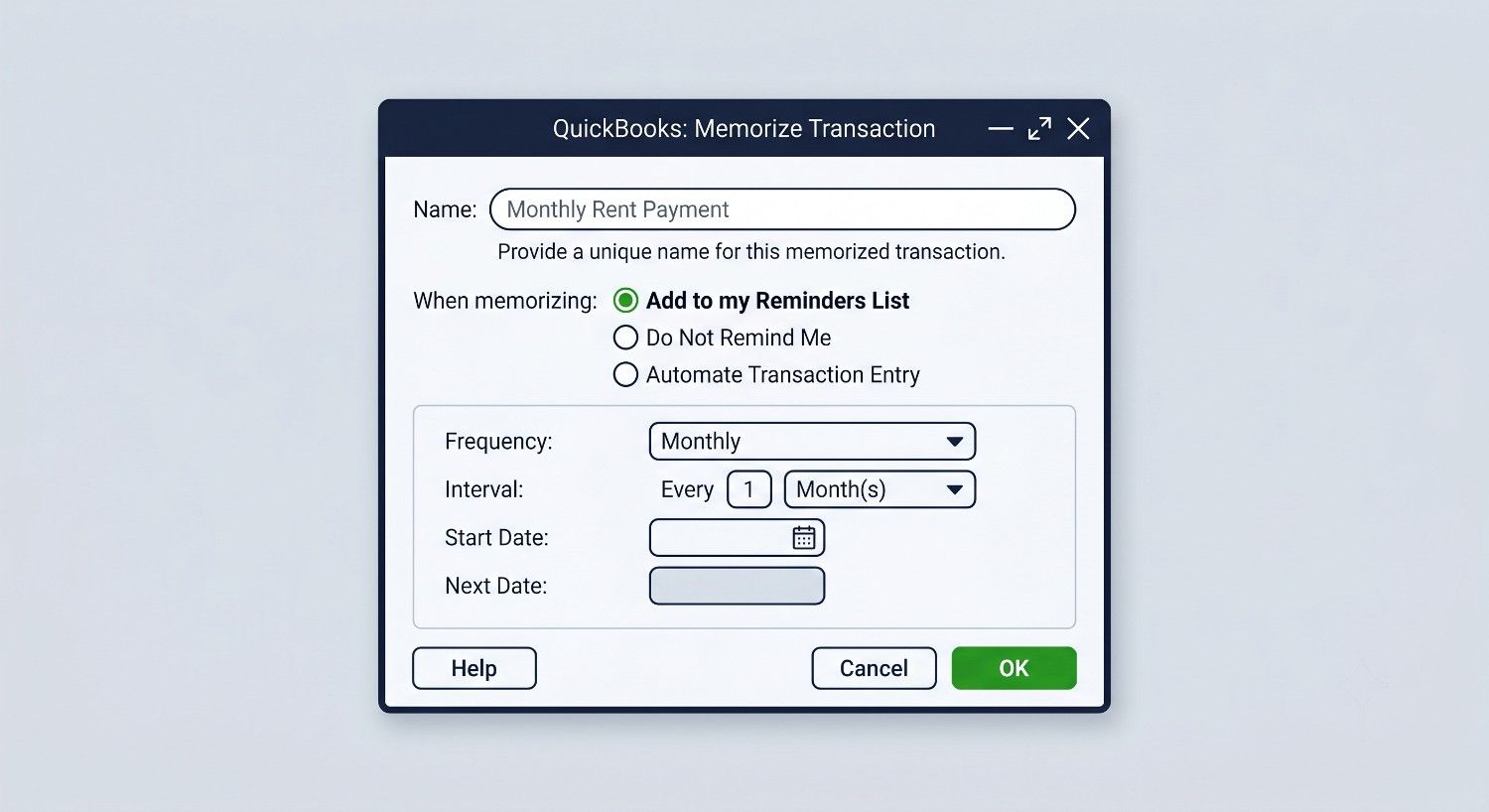
Figure 1 – Before you can memorize a transaction, you must first enter the details to create a template.
The vendor’s name will already be pre-populated on this screen. Directly below that field, you must choose one of three distinct ways QuickBooks can handle this transaction when a due date is approaching:
Add to my Reminders List: The recurring transaction will appear on your Reminders List every time it is due. This is the best option for transactions that have a highly predictable date but varying monthly amounts—such as utility bills or usage-based software licensing.
Do Not Remind Me: QuickBooks will not post a notice on your calendar. This is ideal for templates that contain complex account distributions but do not recur on a fixed interval—such as a specialized clean-up service that you contract only as-needed.
Automate Transaction Entry: Use this option with caution. This setting directs QuickBooks to create and post the transaction automatically on the scheduled date without requiring your approval. Only use this for fixed, unvarying expenses—such as office rent, fixed equipment leases, or structured bank loans.
Once you select your reminder option, click the dropdown menu next to How Often and specify the correct interval. You can then use the calendar icon to select the date of the next occurrence. If you choose Automate Transaction Entry, you can also specify the Number Remaining (useful for leases with defined end-dates) and Days in Advance to Enter.
Customizing Your Warning Windows
To ensure your cash flow remains stable, you will want advanced warning of upcoming bills and automatic payments. QuickBooks allows you to customize exactly how much warning you receive for every type of reminder.
Navigate to Edit > Preferences in the top menu. Click on Reminders in the left vertical pane, and select the Company Preferences tab. From this window, you can choose whether to display a summary or an itemized list for each reminder category, and enter the exact number of days’ warning you want.
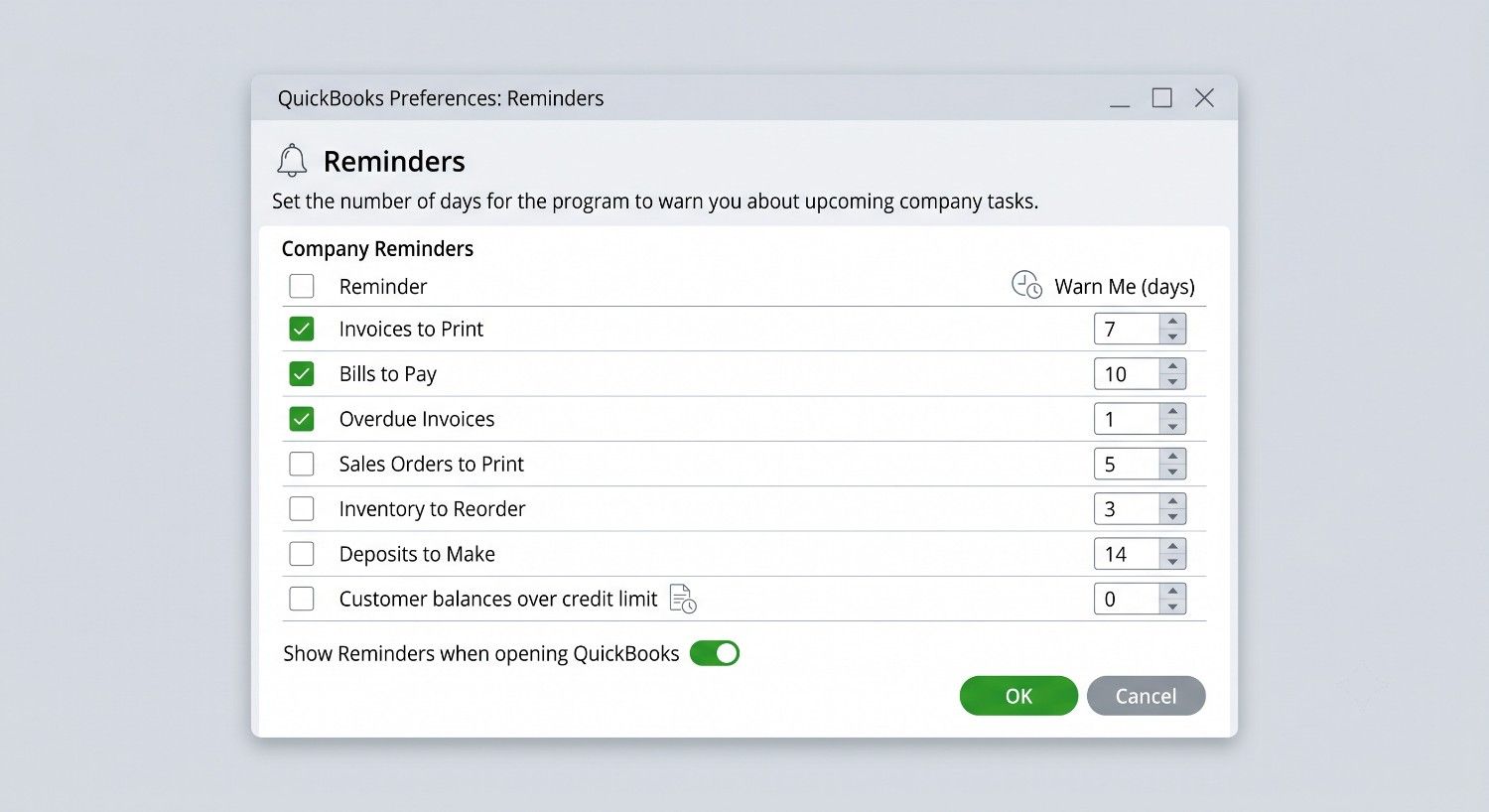
Figure 2 – QuickBooks allows you to define the notice and timing of your reminders.
Managing Your Saved Templates
As your vendor contracts change, you will need to audit and update your saved templates. QuickBooks organizes all your recurring profiles in a single, easily accessible register.
Navigate to Lists > Memorized Transaction List in the main menu to display your active directory. Right-clicking on any entry inside this window will open an interactive action menu.
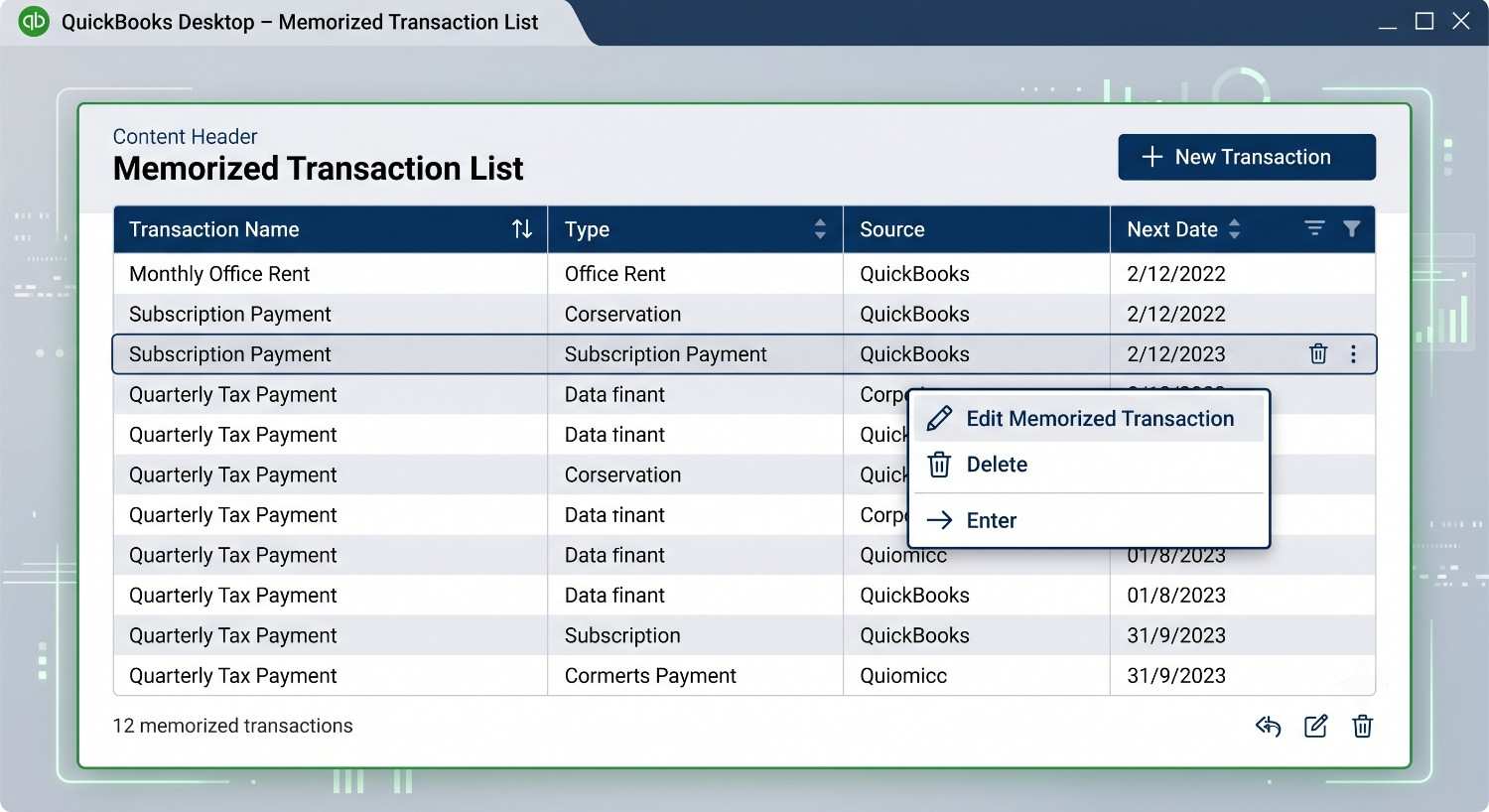
Figure 3 – Right-clicking on your Memorized Transaction List provides easy editing controls.
From this list, you can search for specific files, delete outdated templates, or instantly generate an immediate transaction. If you have several related items (such as a group of monthly utility bills), you can organize them together as a New Group to process them simultaneously.
Whenever you automate accounting processes, it is essential to set up the underlying accounts correctly. If you would like to audit your recurring transactions or build a structured template list, we are here to help.
Regardless of whether you run a for-profit or non-profit organization—be it a service shop, general contractor, or local church—you must always strive for best-in-class financial practices. Taking the time to “steer your ship” in the right direction relies entirely on obtaining accurate and timely information from QuickBooks.
We frequently see three primary reasons businesses fail to get reliable, timely financial reports from QuickBooks:
Outdated File Setup: The initial configuration and Chart of Accounts were never set up correctly to match your operational metrics.
Insufficient Training: You and your staff have not been properly trained on how to use QuickBooks features correctly.
Lack of Process Commitment: The business has not made the operational commitment to complete month-end closings on time, depriving managers of actionable data.
Our company, AEII (QuickBooks R Us), is dedicated to helping small businesses achieve their operational goals by providing the structured training, file clean-ups, and security integrations they need to succeed.
📅 Book Your Session Now
Free 30-Min Consultation • No Obligation